
Product Media
2D to 3D viewer: rotate the product in the browser.
The Youzu 2D to 3D viewer builds an interactive 3D model from one or more product photos and lets shoppers rotate and zoom it in the browser. Extra angles improve results and hidden sides are inferred, so clean multi-angle product photos give the best model.

Key points
- Start from one or more product photos to build an interactive 3D model.
- Send extra angles: they improve results.
- See the whole product in 3D: hidden sides are inferred from your photos.
- Start from clean, multi-angle product photos; supported categories are scoped with you.
How it works
Step 1: Add product photos.
Provide one or more product photos; extra angles improve results.
Step 2: Build the model.
Youzu builds an interactive 3D model; hidden sides are inferred.
Step 3: Inspect the model.
Rotate it and compare silhouette, legs, openings and materials with the product.
Step 4: Add the viewer.
Show the model on your product page next to your product photography.
See it in the product
Product images, as interactive 3D models.
Product images become 3D models that turn in the viewer, so shoppers can inspect the profile, arms and back.
Photos for 3D
Choose the photos, then see which sides are photographed and which are inferred.
Choose which photos to supply, then see which sides are photographed and which are inferred.
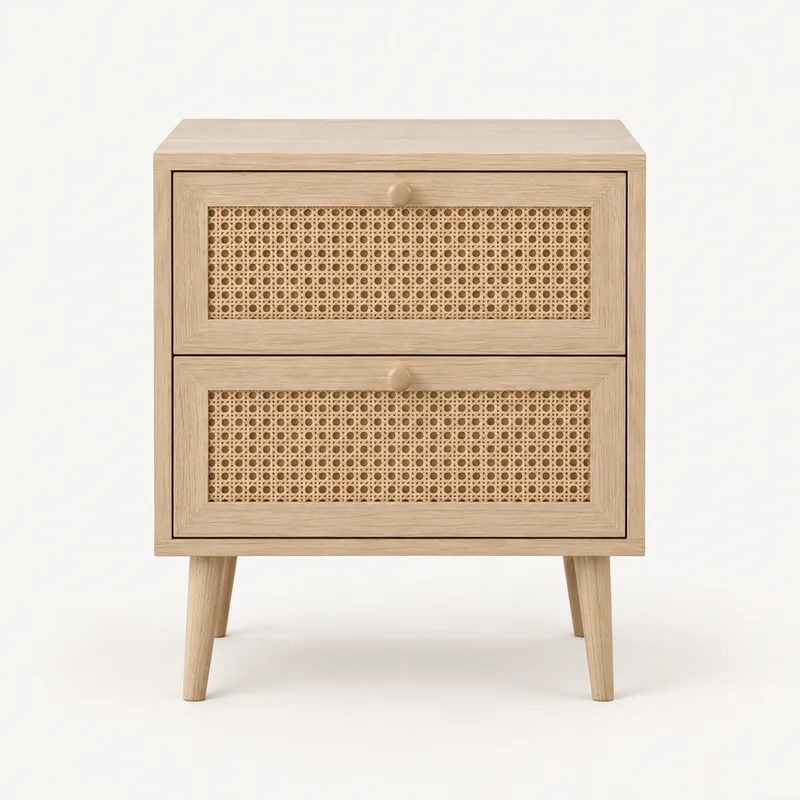
Front · Supplied 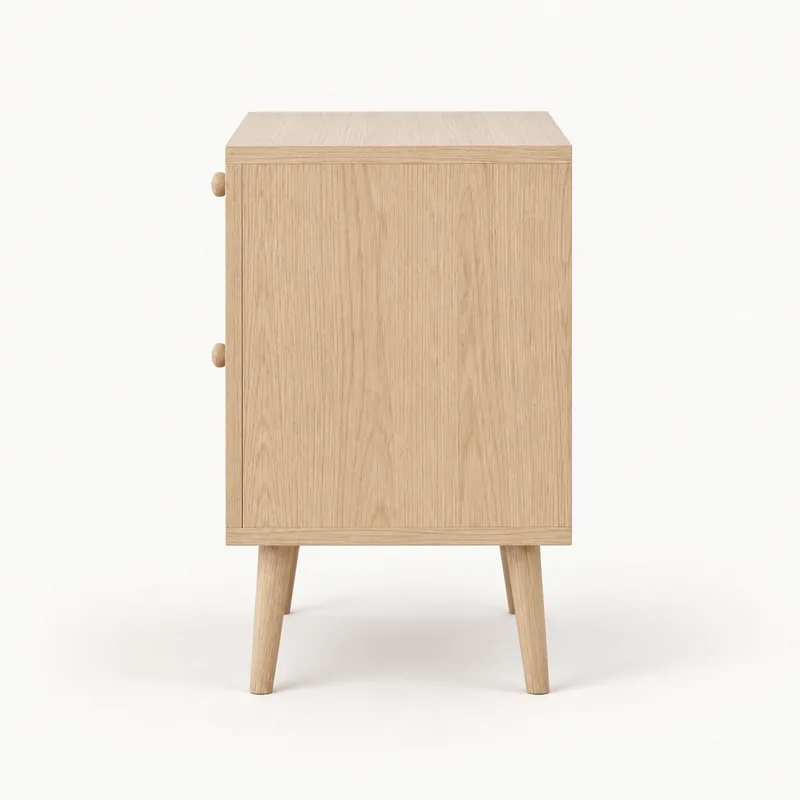
Side · Not supplied 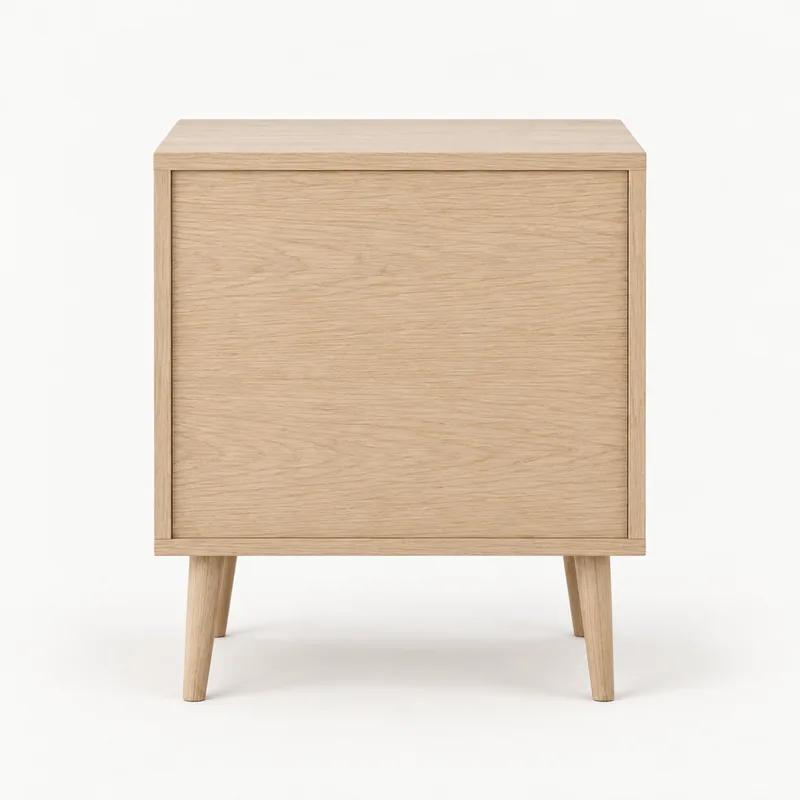
Back · Not supplied 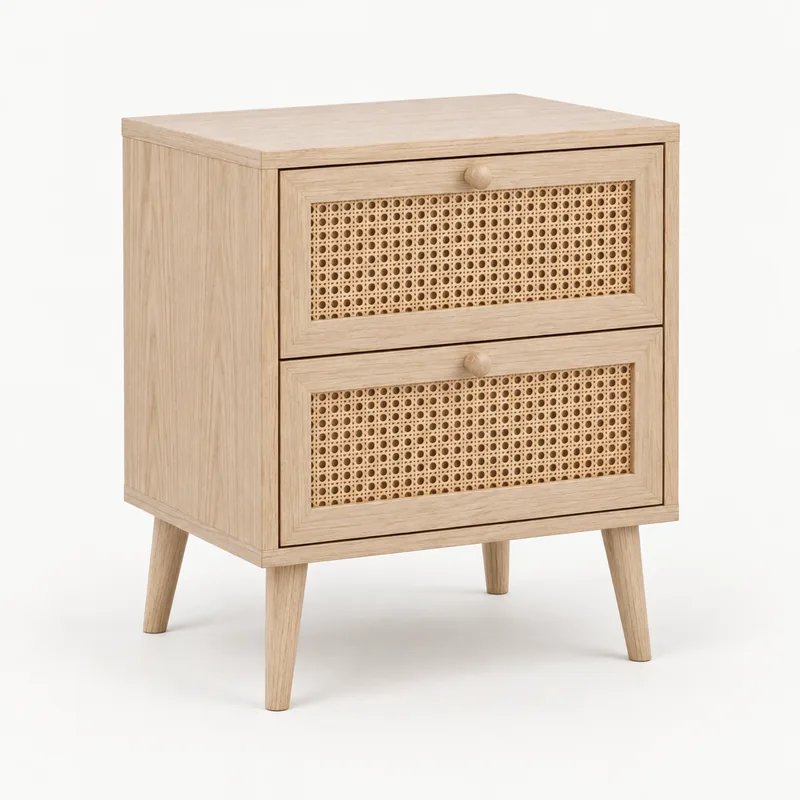
Three-quarter · Not supplied
- Photographed:
- front
- Inferred:
- left side, back, right side, top
A rotatable, zoomable 3D viewer for product models. The viewer below shows the sample model of this page.
Rotate a sample model.
Press View 3D model, then drag to rotate the sample model.
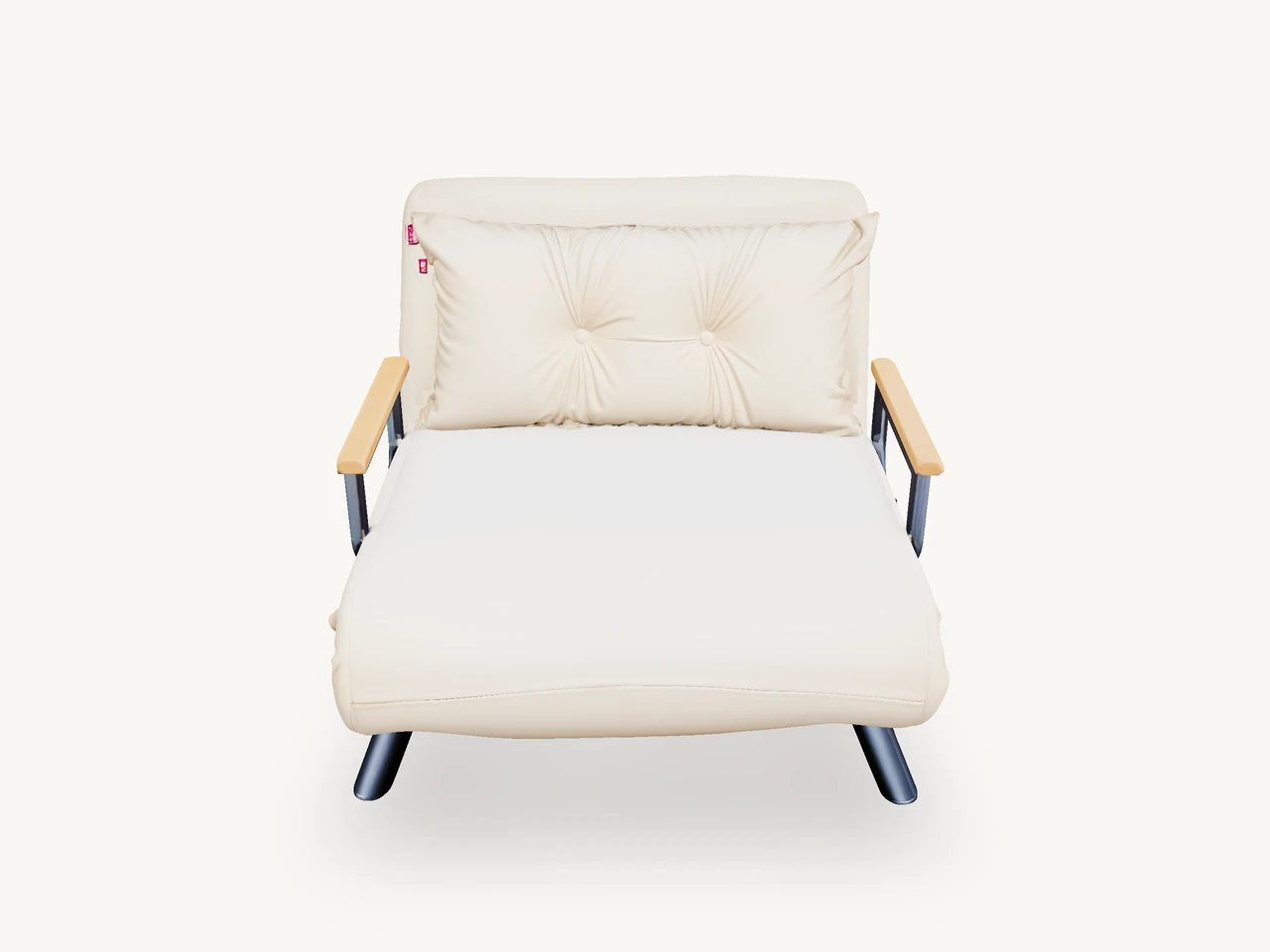
Rotating shows the back, the underside, legs, handles, openings and material details.
Read as text
What to check as you rotate
- Silhouette
- Legs and handles
- Openings
- The back and underside
- Materials and distinctive details
Product films
Recording of the Youzu platform. The viewer on this page is separate.
Transcript
- Product Media. Give your products another angle. (Visual: A chair turns in the 3D viewer as the view moves closer.)
- Turn product photos into 3D models. (Visual: The chair is seen from the side and close up, then a second, upholstered chair turns in the same viewer.)
- Replace a product's background. (Visual: A before and after slider shows a sofa on a plain white background and the same sofa in a furnished living room.)
- Put the product in a new scene. (Visual: The same slider on a red cordless power tool, on white and then on a workshop bench, with brand marks blurred.)
- Rotate the model to inspect it. (Visual: The upholstered chair is rotated and brought close to show the fabric and the back.)
- See it with your catalog. Book a demo. (Visual: End card: a white card with a short gradient rule, the line, a Book a demo button and the Youzu logo.)
Related
See the documentation for authentication and request formats.
Questions buyers ask
You can start with one photo, but extra angles improve results. Hidden sides are inferred from the photos you provide, so a single photo gives an inferred back that you should check. Clean multi-angle product photos give the best model, and supported categories are scoped with you.
No. The model is a generated visual representation. Hidden sides are inferred, and the model is not a measured copy of the product or a source of certified dimensions or manufacturing geometry. Compare the silhouette, legs, handles, openings and materials with the real product before you publish it.
Lifestyle photos can give weaker results than clean product photos. Clean, multi-angle product photos give the best results, so start from those. Supported categories are scoped with you, so start the conversation with the products and the photo types you have, and compare the results against the real products.
You do not need a pre-built connector: send files or call the API. Youzu works alongside your PIM, ERP, search and storefront, and those systems stay authoritative for their own data. The viewer is a rotatable, zoomable 3D viewer for product models; the Developers page lists the options.
No. The viewer shows a rotatable 3D model on the page. Youzu does not place products in a camera view of your room, and it does not provide room scale or fit. Use the model to inspect shape and details, not to check that a product fits a space.
The example uses the viewer exactly as it is on this site, which rotates with a drag and has zoom switched off. The viewer for product models is rotatable and zoomable. Ask for a demo to see it on your own products.