
Extract product attributes from images.
Youzu extracts attributes from product images and text; values the evidence does not support are left empty, and numbers stay typed. Image evidence such as color or closure is combined with the seller's text, and a title that seems to contradict the first image raises an advisory warning that names the fields.
Key points
- Check what a product photo shows, such as color or closure.
- Use image evidence with the seller's text; leave unsupported fields empty.
- Send photos and text; read typed attributes back for filters and search.
- Flag a title and first image that seem to contradict each other.
Try it
Pick a dot, guess, then see the evidence.
Pick a dot, guess, then see the evidence.
- Original information
- Suggested details
- Collar
- Closure
- Pockets
- Lining
Decisions
How a decision is made
- Inputs
- Product photos, the seller's title and description, and the attribute definitions of your category.
- Signals
- What the photo shows and what the text states. A value is filled only when the evidence supports it.
- Review
- A value the photo cannot support stays empty and goes to review. A title that seems to contradict the first image raises an advisory warning that names the fields.
- Output
- Extracted attributes are available through the API. In the Merchant flow they are advisory suggestions your application decides on.
- Original record
- Youzu keeps the seller's original record beside the enriched result so changes can be reviewed.
Your rules, your reviewers, your approval.
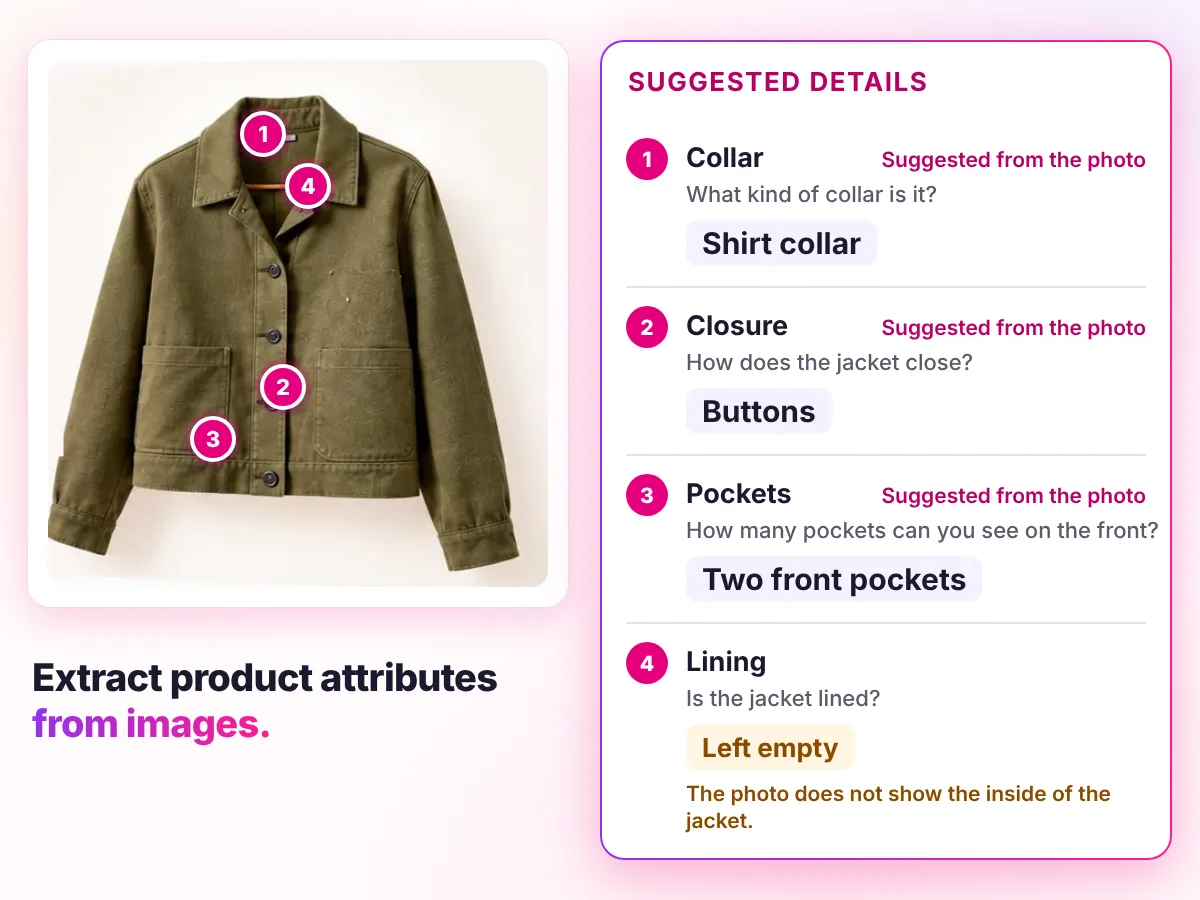
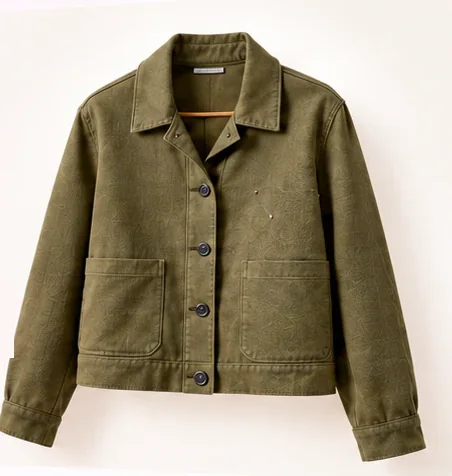
The example's first state: the seller wrote "Olive wool field jacket with buttons and 2 front pockets." Each dot reads one attribute from the photo.
| Field | Seller's text | What the photo shows | Suggested |
|---|---|---|---|
| Collar | Not stated | Youzu looked at the neckline at the top of the photo. | Shirt collar. Suggested from the photo |
| Closure | with buttons | Youzu looked at the front edge down the middle of the jacket. | Buttons. Suggested from the photo |
| Pockets | 2 front pockets | Youzu looked at the lower front of the jacket. | 2 front pockets. Suggested from the photo |
| Lining | Not stated | The photo does not show the inside of the jacket. | Left empty. Ask the seller. |
From supplier data to a finished product page
Recording of the Youzu platform. It shows Catalog Intelligence on an example catalog; names, prices and identifiers are blurred.
Transcript
- From supplier data to a finished product page. (Visual: Under a Catalog Intelligence eyebrow, a source information panel slides in beside a product page and shows the supplier's original name, description and attributes.)
- Start with what the supplier sent. (Visual: The supplier's original name is ringed, with the cue Supplier's original name and an Original information chip.)
- Details follow your category. (Visual: The specifications grid shows separate fields such as product type, size, color and sleeve length, with the cue Attributes by category and a Suggested details chip.)
- Variants stay connected to one product. (Visual: Variant chips switch the product photo between 3 colors, with the cue Photo follows the variant and a Your listing chip.)
- Add languages to titles and descriptions. (Visual: The language selector switches a track jacket page from English to Arabic and then German; the title, breadcrumbs and description change.)
- See it with your catalog. Book a demo. (Visual: End card: a white card with a short gradient rule, the line, a Book a demo button and the Youzu logo.)
Documentation
Questions buyers ask
It reads what a product photo shows, such as color or closure, and stores it as typed attributes you can use for filters and search. Youzu combines that image evidence with the seller's text and leaves a field empty when neither supports a value. The attributes follow your category definitions. Pick a dot in the example to see one value and its evidence.
Often not, so Youzu does not assume it. A value is filled only when the evidence supports it, and a photo alone cannot always show fabric, dimensions or compatibility. When the text states the material, Youzu can use that; otherwise the field stays empty and goes to review. The fourth dot in the example, the lining, shows this case.
Youzu can raise an advisory warning that names the fields involved, for example the title and the first image, when they seem to contradict each other. The warning does not change the listing or block it. Your application or reviewer decides what to do. The listing quality page lets you try spotting one.
Youzu reads the attributes your category defines, so the list follows your category definitions and not a fixed set. Photo quality, angles and backgrounds change what a photo can show, and a field stays empty when neither the photo nor the text supports a value. Send your category tree with a sample that includes your difficult images.
Send a sample of your photos with the text that goes with them, and compare the extracted attributes with your own labels. Results are measured on your data, with critical errors reported separately. Include your difficult images, such as dark photos, odd angles and photos that show several products. Book a demo to scope the sample.