
Visualize
Room Visualizer: generate a room scene, find the products in it.
Youzu Room Visualizer builds room scenes only from the products you sell, in a room type and style you choose. Every product in a scene is a real catalog product that shoppers can open.
Key points
- Start from a room type and a style; Room Visualizer builds the scene from your catalog.
- See the catalog product behind each numbered item in the scene.
- See only products you sell: every product in the scene comes from your catalog.
See it in the product
Your products, in the shopper's room.
A furnished room built from your catalog: open a hotspot to inspect the real product.
How it works
Step 1: Choose room and style.
Pick a room type and a style for the scene.
Step 2: Build the scene.
Room Visualizer builds a room scene in that room type and style from products in your catalog.
Step 3: Open the products.
Every product in the scene is a real catalog product that shoppers can open.
Step 4: Decide the next step.
Your storefront stays authoritative for its own data; you decide what the shopper can do next.

See a generated room scene.
Drag the handle or use the arrow keys to compare, then choose a numbered item.
- Room type: living room
- Style: Scandinavian
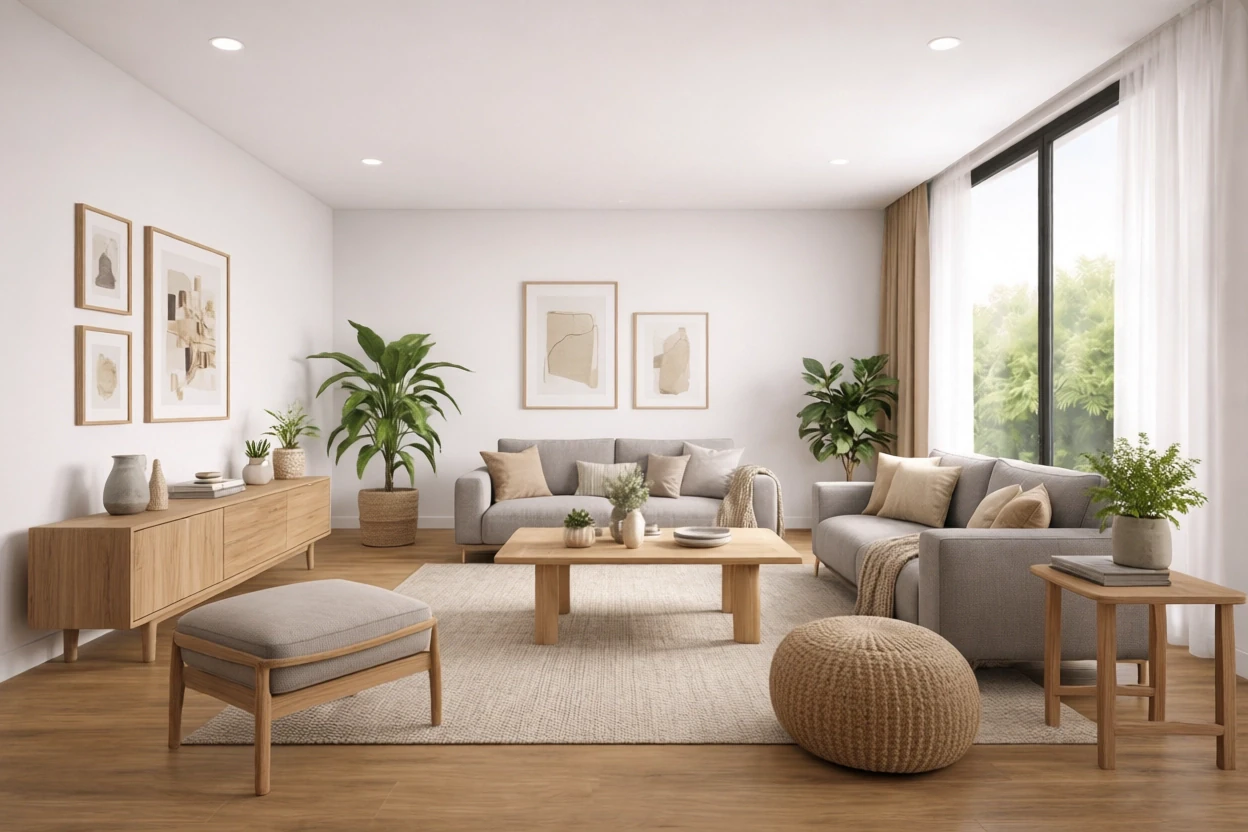 Virtually staged
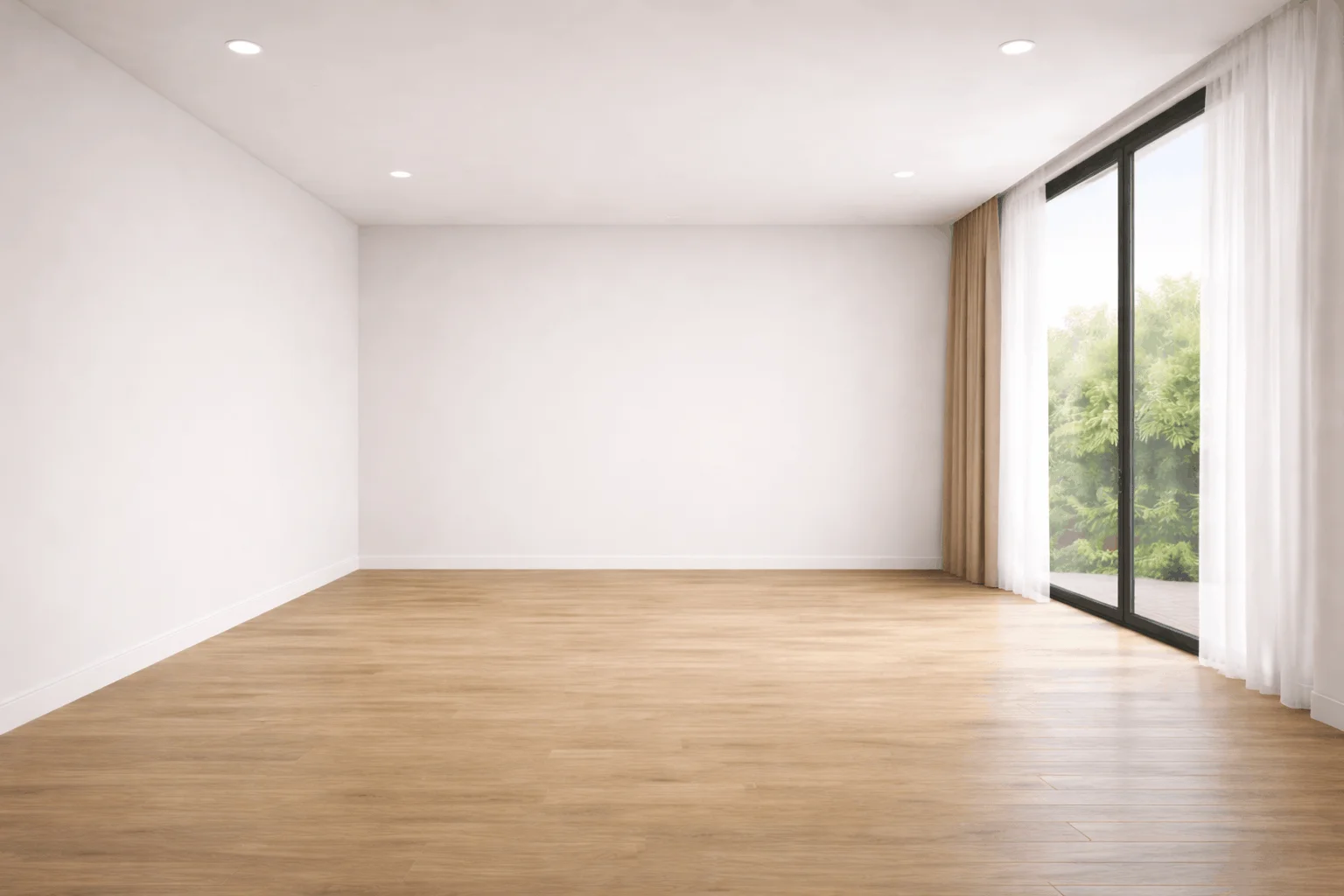
Drag the handle or use the arrow keys.
Catalog products in the scene
Read as text
Product films
Recording of the Youzu platform. It shows Room Visualizer on an example catalog; generated rooms are virtually staged.
Transcript
- Generate a room scene and find the products in it. (Visual: Under a Room Visualizer eyebrow and an Earlier version tag, a photo of an empty living room: the room a shopper uploads.)
- Choose a room type and a style. (Visual: Room type cards suggest a living room, then the Contemporary style is chosen.)
- Catalog products are suggested for the items in the scene. (Visual: 3 progress cards follow one another while a row of steps fills in underneath.)
- Tap a hotspot to see the product. (Visual: A furnished living room tagged Virtually staged shows numbered hotspots; product cards open for the sofa and the armchair, with names, prices and the basket button covered.)
- Open a product from the scene. (Visual: In a furnished bedroom, the product card of a bench opens from its hotspot.)
- See it with your catalog. Book a demo. (Visual: End card: a white card with a short gradient rule, the line, a Book a demo button and the Youzu logo.)
Related
See the documentation for authentication and request formats.
Questions buyers ask
Room Visualizer builds a room scene in a chosen room type and style only from products in your catalog. Every product in the scene is a real catalog product that shoppers can open, so a shopper can move from an idea for a room to products you sell. The scene is visual inspiration, not a fit check.
No. Room scenes are visual inspiration, not a fit check. They are not a source of dimensions, so size has to be checked separately on the product page. Youzu does not place products in a camera view of your room; the scene is a generated image.
Yes. Room Visualizer builds the scene only from products in your catalog, so every product in it is a real catalog product that shoppers can open. It picks 2 to 6 products from your catalog for a scene and returns the position of every product in it. Review each scene before shoppers see it.
Generation takes time, and progress is shown. Evaluations start with a sample of your own catalog, so you see how it behaves on your own images rather than on ours. Youzu does not publish speed figures, so measure the timing on your own sample during the evaluation.
You do not need a pre-built connector: send files or call the API. Youzu works alongside your existing PIM, ERP, search and storefront; those systems stay authoritative for their own data. Evaluations start with a sample of your own catalog, so you can see Room Visualizer on your products first. The Developers page lists the integration options.