
Product Media
Magic Background walkthrough
Magic Background creates or removes backgrounds for product images, shown here on a sofa, a power tool and a bottle.
Transcript
- Magic Background creates or removes backgrounds for your product images. (Visual: Title card: Youzu Platform, Magic Background, Create or remove backgrounds for product images, beside a hanging wicker chair with a before and after slider.)
- A product photo shows the item. Magic Background gives it a different setting. (Visual: A generation detail opens in the platform with a cream sofa on a plain background; the after side shows the sofa in a furnished room.)
- Move the comparison slider to see this sofa in a furnished interior, then compare the power tool with its new background. (Visual: The comparison slider moves across the sofa, then across a red power tool placed on a workshop bench.)
- For a clean studio image, remove the background instead. (Visual: A list of generations, then a bottle of oil shown against a shelf of products.)
- Compare the bottle before and after. (Visual: The slider moves across the bottle: the shelf behind it is replaced by a plain background.)
- Create a new setting for your products. (Visual: End card: the Magic Background title and the line A new setting for your product images., beside the sofa in a furnished room.)
- Explore Magic Background with your images.
What the film shows
Key points
- See a product's background removed or replaced with a supplied image or a prompted scene.
- Review results against the source photo: detection and segmentation keep the product separate from the new background.
- See products from the same catalog on new backgrounds.
Go further
The product this film shows, and where to read more.
- ProductMagic BackgroundRemove a product's background or replace it with a supplied image or a prompted scene, working from the product images you already have.
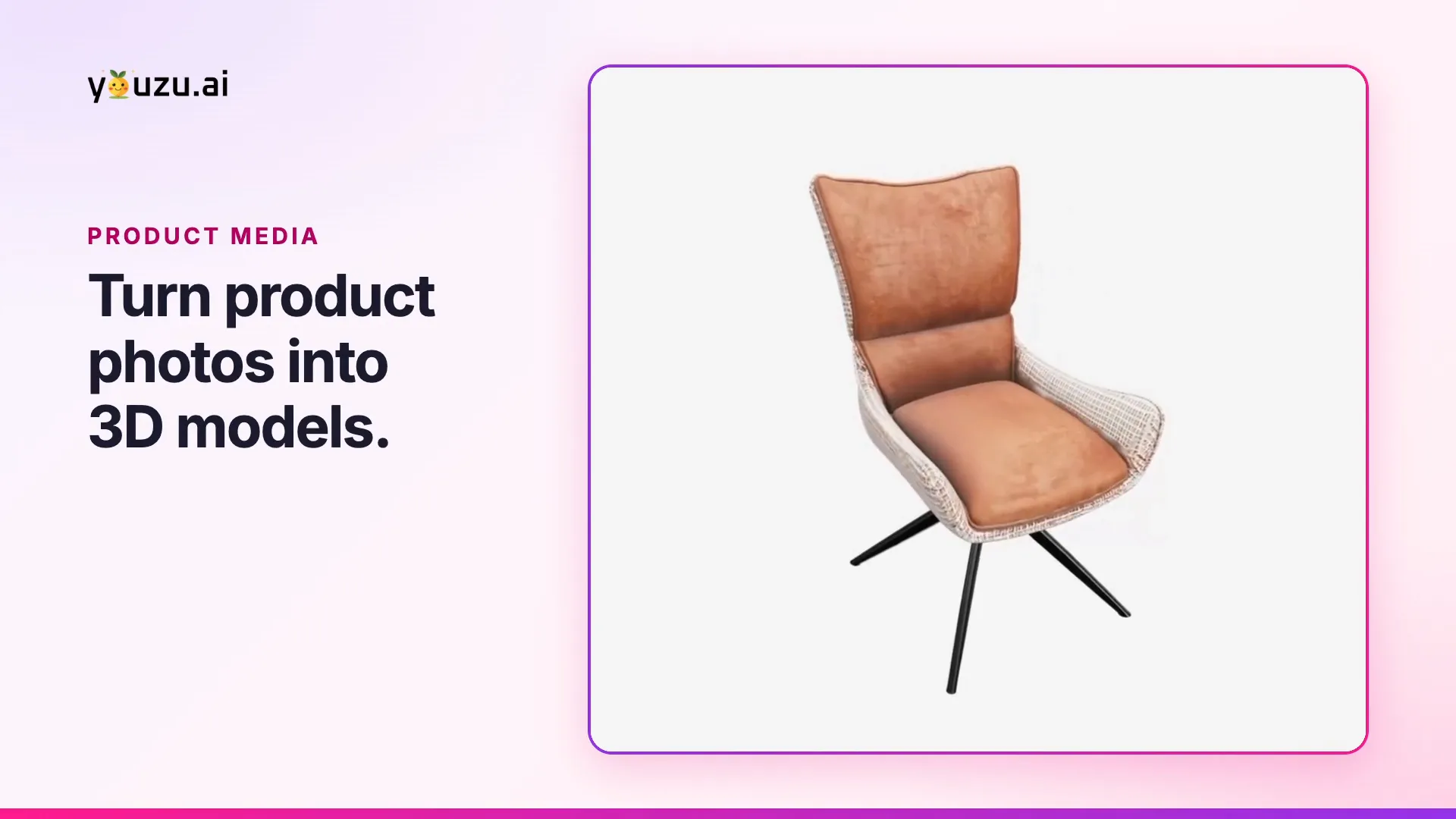
- ProductProduct MediaProduct Media builds 3D models from product photos and replaces product backgrounds with Magic Background. Extra angles improve 3D results.
More product films
Next step
Automate Commerce. Make shopping personal.
Bring your catalog, listing flow or shopping idea. Let's find the right place to start.
Book a demo
Tell us about your catalog and we will get back to you.