
Why Youzu Starts Visual Discovery With the Retailer’s Catalog
A shopper has a photo but no product name. Follow an entryway bench from inspiration to a product page, and see which decisions belong to the store.
Published by Youzu · Editorial policy
- Published
- Updated
- Reading time
- 3 min read
What changed: Revised article and supporting media
In this article
A shopper walks into a furniture store with a picture and points to the bench by the door. A salesperson can start there, even if the shopper doesn't know what to call it. We built Youzu’s visual discovery tools to give an online store that same starting point. The photo tells you what caught someone’s eye. Your catalog tells you which product, if any, you can show them.
Start where the shopper would point
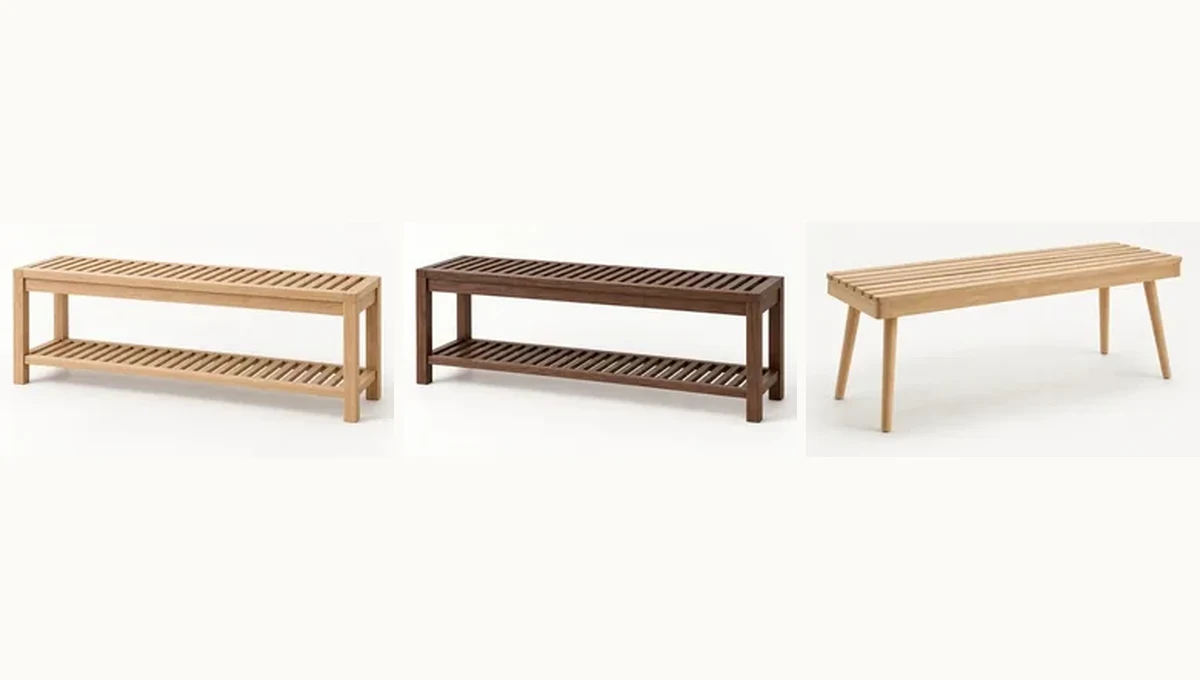
Take the entryway in the Youzu Lens example. There’s a bench with a shoe shelf, a hanging lamp and a basket. Select the bench and the example assortment contains that model. Select the lamp and the closest option is a similar dome in brass. For the woven basket, the example offers a felt bin as a broader storage option. One picture leads to three different answers, none of which requires the shopper to type ‘splayed legs’ or know the name for the lamp shade.
A store can put that photo entry beside its search box. Someone who already knows a product name can still type it. Someone with the picture can choose the bench and open the corresponding page. A lookbook on your own site starts a little differently. With Shop the Look, a shopper can explore more than one piece in the same editorial photo and return for the next one. In either case, the destination matters: a shopper looking for the shelf underneath the seat shouldn’t land on the generic benches category and have to find it all over again.
Decide what the picture can answer
On the product page, the shopper might want to see the bench in a furnished hall or find out how wide it is. Those questions need different sources. The Room Visualizer example shows catalog pieces in a staged scene with markers you can open. It can give a sense of the look. For width, use the specification for the selected bench and compare it with the space available. Don't measure the staged image.
That distinction explains why the Youzu Platform starts with product records. Catalog Intelligence prepares records from supplier or seller data; Discover uses catalog images to find candidates. Product Media can show a selected piece on a new background or as a rotatable model. Your storefront still owns the page the shopper opens and what they can order there.
Choose one place to begin
Start with a question your store actually receives. If it’s ‘Do you carry this bench?’, bring a shopper-style photo, the corresponding catalog images and the destination pages to a photo-search evaluation. Include something you don’t carry. Agree on when to offer a lookalike and when to show nothing. Only add a room view if the next question is how a piece looks in context; the shopper needn't take a tour of every tool to find a bench.