
How to make a room scene shoppers can actually shop
From Youzu Fill to Room Visualizer: see how to check shoppable hotspots, separate products from props, and label a virtually staged room.
Published by Youzu · Editorial policy
- Published
- Updated
- Reading time
- 2 min read
What changed: Revised article and supporting media
In this article
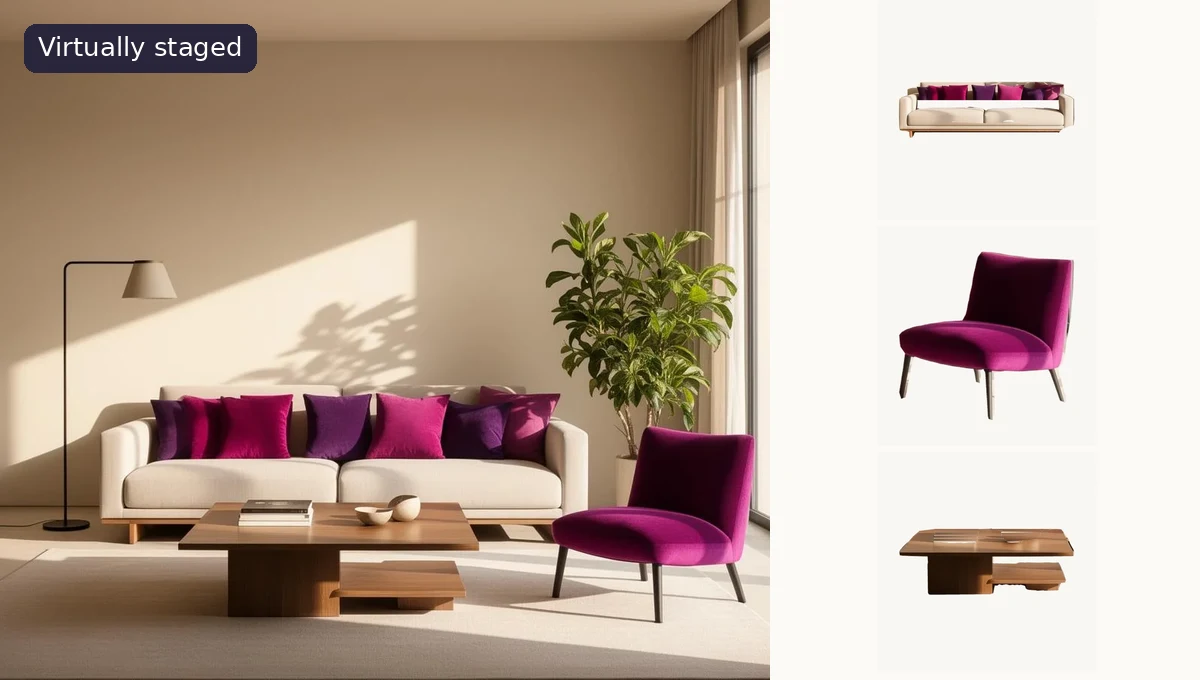
A room scene is shoppable when the reader can point to a featured item and open the corresponding product. This article originally covered Youzu Fill. The Room Visualizer example now illustrates a different starting point: choose a room type and style, then inspect the featured catalog products. Before publishing, open every numbered hotspot yourself. A chair that looks right but opens the wrong finish is not ready to sell.
Start with the pieces you intend to sell together
Imagine an entryway collection built around a low oak sideboard. The sideboard is the point of the scene. A vase on top might help a shopper picture the room, but unless it has an identified catalog record, don’t promise that they can buy the vase. In your copy, name the marked items rather than inviting readers to buy everything in the picture.
For each featured piece, keep its product photo and destination page at hand. If two sideboards share a name but have different door fronts, use the correct variant photo. Give the reviewer a detail they can recognize in both views: woven doors rather than smooth ones, or a recessed pull rather than a round knob.
Review the scene from the shopper’s side
| Check | What to do before publishing |
|---|---|
| Product identity | Compare each marked piece with its catalog photo. If a distinguishing feature has changed, revise the scene or leave it out. |
| Hotspot destination | Tap the marker on a phone. Open the linked page and check the product and finish, not just the collection name. |
| Availability | Check the offer in the storefront. An item appearing in a generated picture doesn’t establish that it’s in stock. |
| Disclosure | Put “Virtually staged” with the image, including wherever a thumbnail can appear without its caption. |
When should you use Swap instead?
The Room Visualizer example shows how to build a scene around a group of catalog products. Use Youzu Swap when you already have a room photo and the decision concerns one piece: would the pale armchair or the darker one work better against that wall? Keep the original beside the alternative for review.
Neither view establishes physical fit. If the question is whether the sideboard clears the door swing, show the product dimensions and ask the shopper to measure the space. The room picture answers a different question: does this collection have the look they want?
Watch the Room Visualizer film for an earlier-version walkthrough of the handoff: a numbered scene marker opens the product behind it.
Read the captions
Generate a room scene and find the products in it. Choose a room type and a style. Catalog products are suggested for the items in the scene. Tap a hotspot to see the product. Open a product from the scene. See it with your catalog. Book a demo