
When the product image doesn’t match the title, which one do you fix?
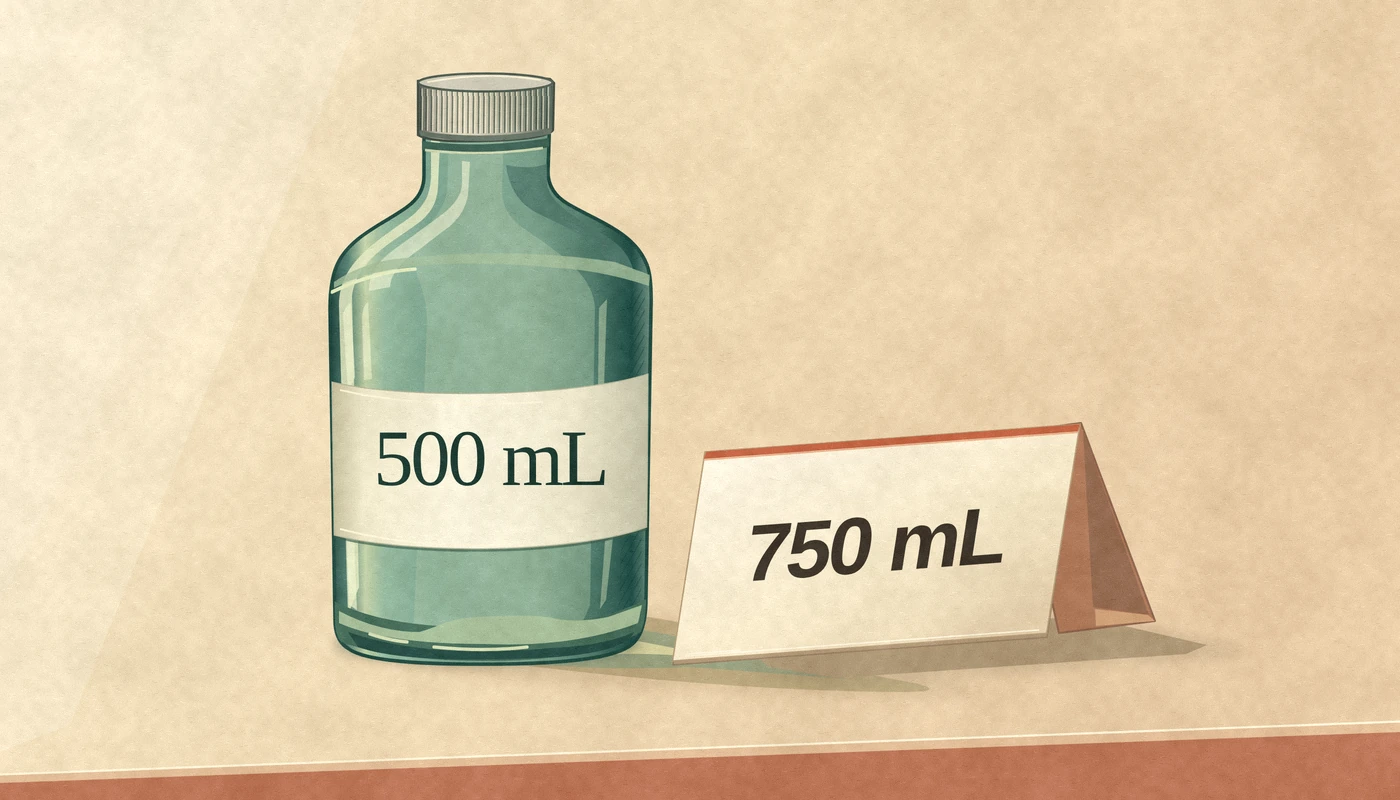
The title says 750 mL. The bottle says 500 mL. A catalog editor has to verify what ships before changing either one. Here’s how to make that call.
Published by Youzu · Editorial policy
- Published
- Reading time
- 4 min read
In this article
The listing says “750 mL sparkling water.” The bottle in the main photo says “500 mL.” A shopper can read both. What they can’t tell is which bottle will arrive.
When a product image and title disagree, verify the exact item the seller will ship before changing either one. If the seller stocks the 750 mL bottle, replace the photo. If the seller stocks the 500 mL bottle, correct the title and any size fields that say 750 mL. If nobody can confirm the size, keep the listing in draft. Rewriting the title to match the picture could make the page look consistent while leaving it wrong.
Three listings that look like size errors
A catalog editor needs a different answer for each of these sparkling-water listings. Only one calls for a replacement photo or a corrected title.
| What the editor sees | What to do |
|---|---|
| The title says 750 mL. The specification says 0.75 L for the same bottle. | The amounts agree. Convert the unit if the destination requires it; don’t send the listing back to the seller. |
| The offer says 6 × 750 mL. The packaging confirms six bottles. | Keep pack count and volume per bottle in separate fields. A six-pack is not one 4.5 L bottle. |
| The title says 750 mL. The pictured label says 500 mL. | Check the seller’s item reference against the exact bottle. Correct the image or the text only after that check. |
Ask the seller a question they can answer
“Invalid product data” sends the seller back through the entire form. A useful warning names the two values and asks for the one fact the marketplace doesn’t have:
Your title says 750 mL, but the bottle in your first photo says 500 mL. Which size will you ship for this listing?
If the seller confirms 750 mL, ask for a photo of that bottle, not another image of the product family. If the seller confirms 500 mL, check the structured volume as well as the title. If the seller offers both sizes, open each variant separately: selecting 500 mL should show its own image and size. Don’t apply one seller’s correction to every offer with the same product name.
This distinction also matters when the listing leaves your site. Google Merchant Center’s image guidelines tell merchants to match the image to the specific product option being sold. A correct photo elsewhere in the family doesn’t fix the wrong main image on the selected variant.
How Youzu flags a title–image mismatch
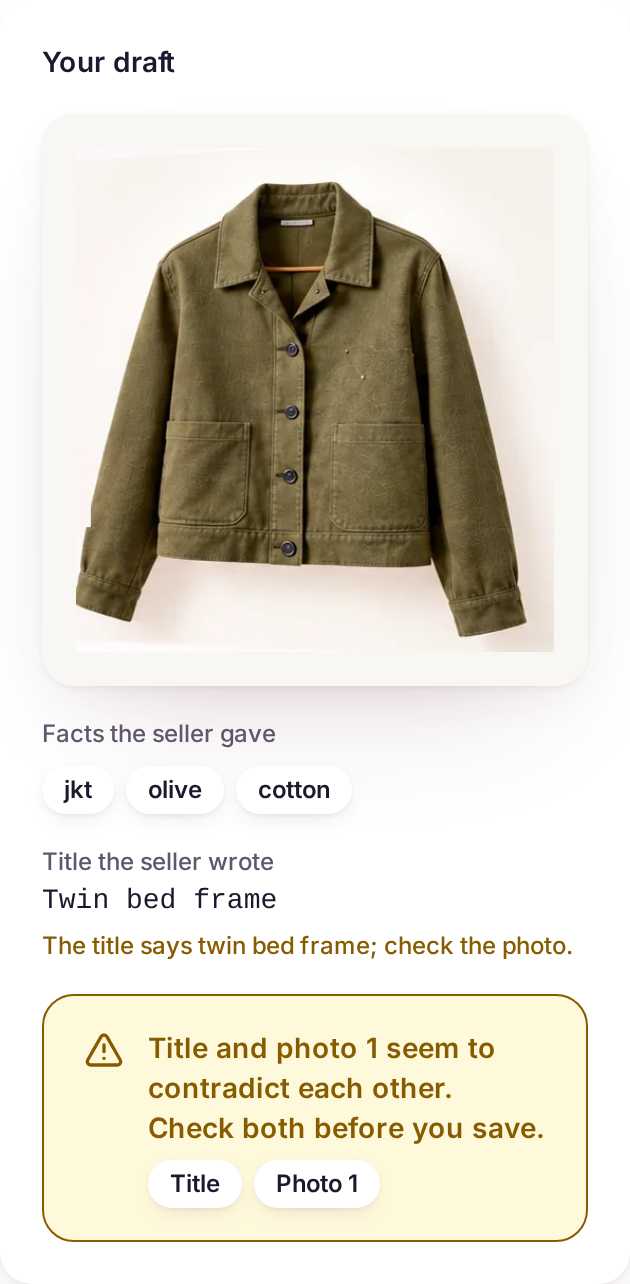
Youzu Merchant is the seller listing assistant that works inside a marketplace’s own form. It returns suggestions and can warn when the supplied title and image appear to describe different products. The marketplace decides what to apply, save or publish.
For the team building the form, the useful detail is which fields to put in front of the seller. The Merchant API v2 reference shows a CONTENT_MISMATCH warning with field paths such as /name/en and /images/0: the English product name and the first image. The warning doesn’t change the component’s status. Your form can show those two inputs side by side without throwing away a usable category suggestion or treating the warning as a rejected listing.
Check the correction where the shopper sees it
Suppose the seller confirms 750 mL and supplies a new photo. The review isn’t finished when the editor accepts the upload. Open that seller’s offer on the product page, select 750 mL, and read the label in the main image. Then switch to 500 mL. Does the photo change with the selection? If the store sends a product feed to a shopping channel, check the image link on the exported row for that same variant, too.
Keep a short record of what changed: the offer or variant ID, the two conflicting values, what confirmed the correct one, and where you checked the result. If the old photo returns with the next supplier feed, that record tells the next editor which source to fix instead of asking the seller the same question again.
Try the warning: Open the Youzu seller listing assistant example and select Try a mismatched title, then Suggest a listing. For the surrounding workflow, watch the 18-second seller listing demo. It shows an olive jacket moving from seller facts to an editable draft; the bottle example above is illustrative.
Related
Keep reading
Product
Merchant: a seller listing assistant for your marketplace
Merchant API suggestions inside your own seller listing form: identity, category, attributes and descriptions from photos and facts, plus image checks.
Guide
Designing a seller listing flow that produces clean data
How to design a marketplace listing flow that collects the minimum, suggests the rest and validates before publishing: photos, category, attributes, draft.
Product film
Demo: help sellers prepare better listings
A photo and a few facts in, suggested categories and the attributes that category needs out, then an editable draft.